





AI Comic Generator from Photo

Upload a permitted photo, define the character and story beat, then create original comic scenes you can compare, sequence, and refine in Ottermind.

Claude
GitHub
Google
Linear
Microsoft
Monday
Netlify
Notion
OpenAI
Sentry
Slack
Stripe
Supabase
Claude
GitHub
Google
Linear
Microsoft
Monday
Netlify
Notion
OpenAI
Sentry
Slack
Stripe
Supabase

How an AI Comic Generator from Photo Works

Use a photo to guide the character, pose, clothing, pet, or setting while the prompt defines the comic moment. Record cues before changing art direction, then plan actions and panels separately. Compare candidate scenes, reserve space for dialogue, and correct faces, hands, costumes, props, or lighting before arranging the sequence.

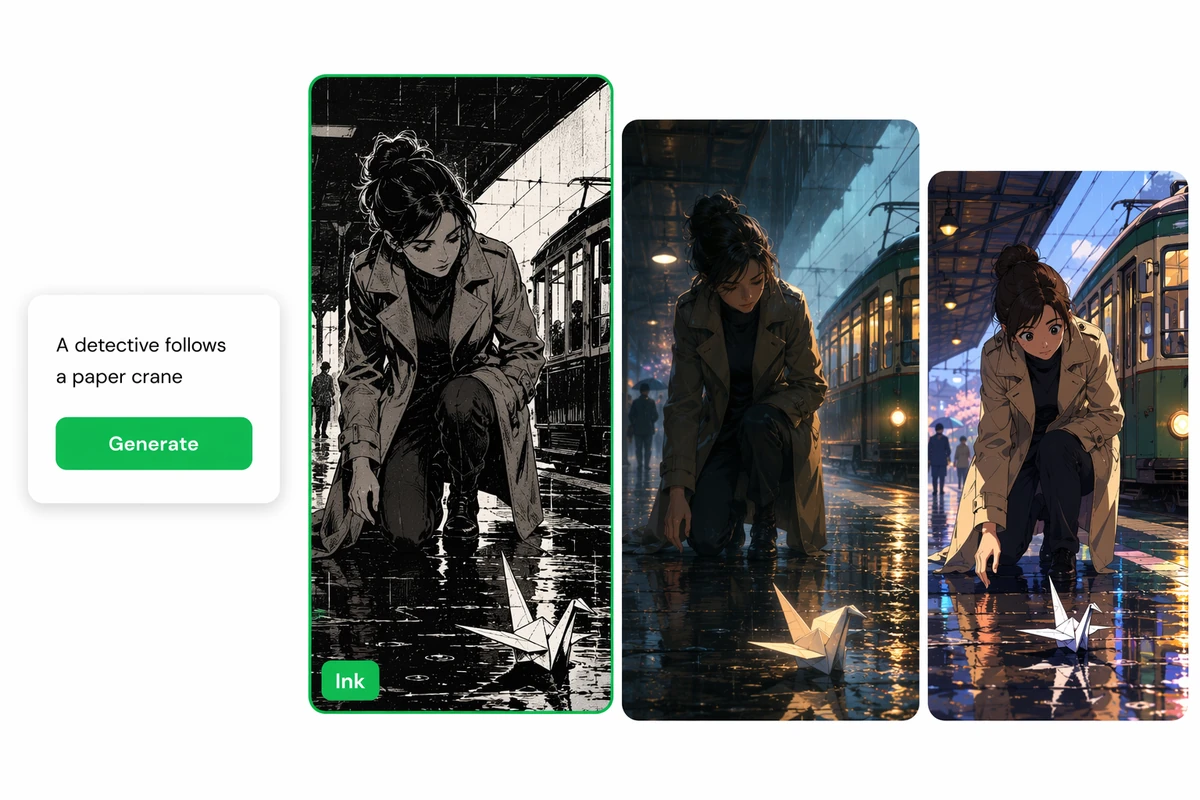
A paper-crane detective scene rendered in ink, concept art, and anime styles

Choose a comic art direction

The paper-crane detective scene compares high-contrast ink, cinematic concept art, and bright anime rendering while preserving the same rainy station moment. Test one style variable at a time, then select the treatment whose contrast, detail, and mood support the intended story.
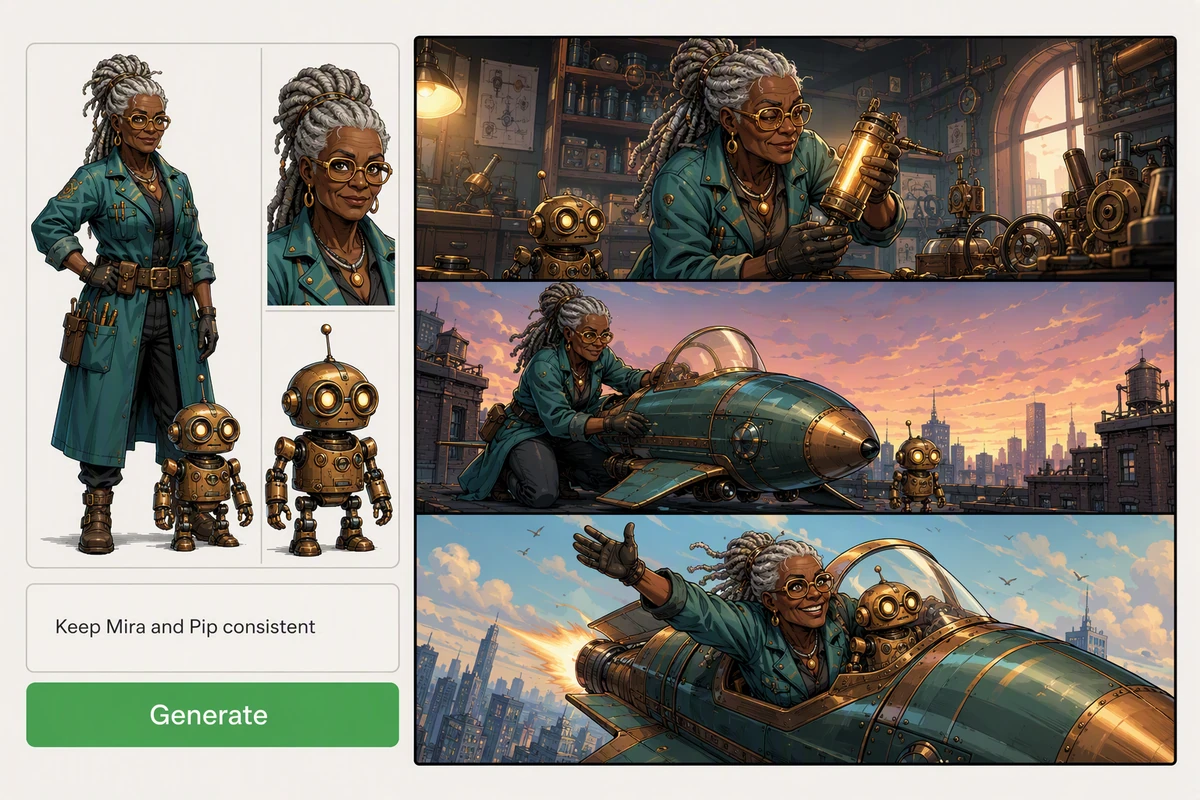
An inventor and brass robot kept consistent across a three-panel comic

Keep characters consistent across scenes

The inventor and brass robot retain their teal clothing, gray locs, round glasses, proportions, and materials across a workshop and rooftop flight. Write a compact character sheet, reuse the approved reference, and check defining cues whenever the pose, camera, or setting changes.

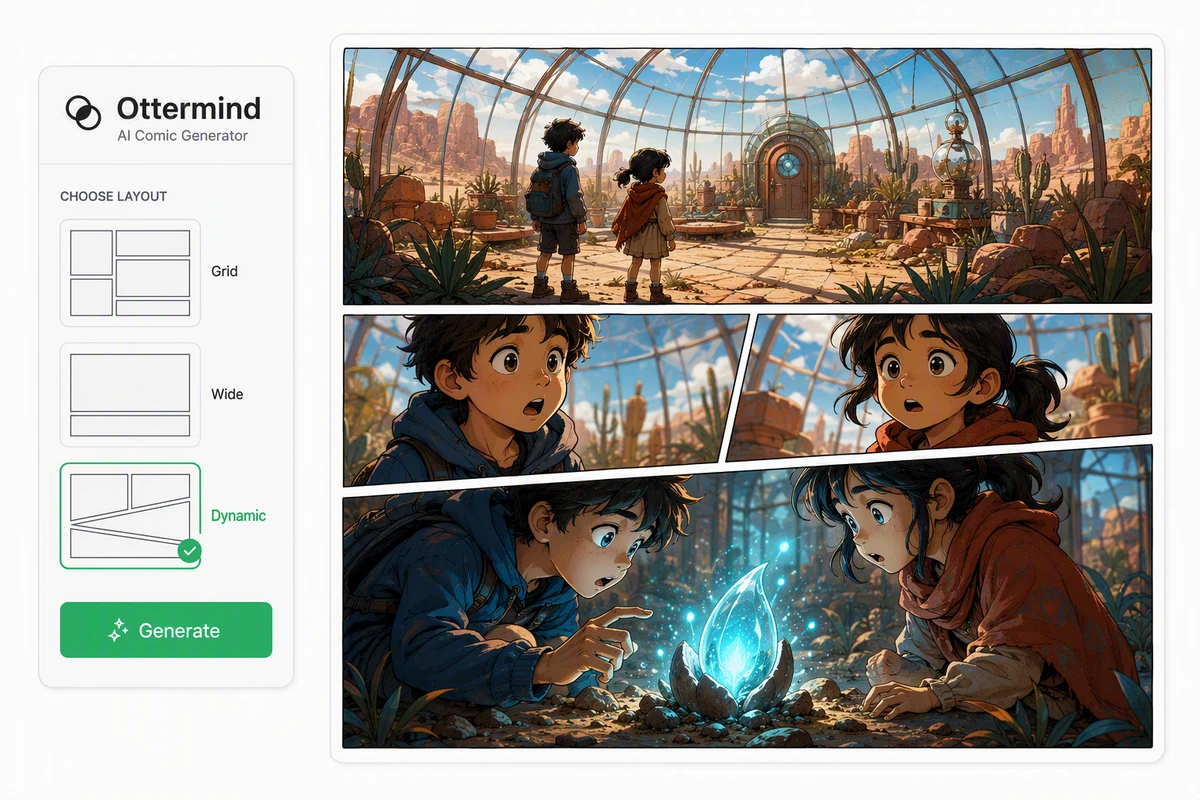
Two siblings discovering a glowing seed in a dynamic comic-page layout

Give each story beat space

The siblings' discovery uses a wide establishing panel, angled reactions, and a large glowing-seed payoff. Plan what each panel must reveal before choosing grid, wide, or dynamic layouts. Develop the narrative first with an AI Story Generator when the visual beat lacks a clear cause or consequence.

How to Make a Comic from Your Photo

Step 01

Upload a reference

Choose a permitted photo with clear identity, clothing, pose, or setting cues. Note which features define the character and which details may change for the comic interpretation.

Step 02

Describe the scene

Write the action, setting, mood, comic medium, camera framing, and dialogue space. Generate several moments, then select one visual direction before expanding the sequence.

Step 03

Build the panels

Check character continuity, expressions, hands, props, lighting, reading order, and balloon space. Request focused corrections, then arrange the approved beats into a clear page rhythm.

Why creators choose Ottermind

Photo-led character brief

Keep recognizable visual cues beside the story request so the new scene remains grounded in the intended character.

Scene-specific prompting

Direct action, setting, framing, mood, and dialogue space instead of asking for an undefined comic filter.

Style comparisons

Judge ink, painted, manga, webtoon, and other directions against the same story moment before expanding it.

Continuity corrections

Call out a changed face, costume, prop, or proportion while preserving the panel elements that already work.

Still-to-motion path

Continue an approved panel with Image to Video when the project needs movement rather than another still scene.

Connected production context

Carry references, character rules, selected panels, feedback, and unresolved fixes into Studio as one working project.

FAQ

What is an AI comic generator from photo?

An AI comic generator from photo uses a photo as reference material for an original comic-style image or sequence. The source can guide character identity, pose, clothing, pet, or setting, while the prompt defines the new action, world, medium, framing, and story context.

Will the comic still look like my photo?

The result may preserve recognizable cues, but generation is an interpretation rather than an exact filter. Use a clear source, list the defining face, hair, clothing, and pose details, then compare every panel. Correct continuity changes before building more scenes.

Can I create several panels from one character?

Yes, plan a compact character reference and reuse the approved image with stable descriptions for clothing, colors, proportions, and signature props. Generate one story beat at a time. Compare each new panel with the reference before changing camera, lighting, or location again.

How should I plan dialogue and panel layout?

Write the beat, speaker, emotion, and reveal before generating the art, then reserve negative space for balloons and captions. Use an AI Story Generator to clarify scene order, and choose panel size according to narrative emphasis rather than decoration.

Can I animate a comic panel afterward?

Yes. Approve the still and identify which character, prop, camera, or environmental element should move. Continue through Image to Video or Photo to Video AI Free, then check whether motion preserves the drawing style and character model.

What should I check before publishing?

Review source permission, character consistency, anatomy, text accuracy, reading order, and whether any protected character or logo appeared unintentionally. For an anime-led moving adaptation, Photo to Anime Video AI Free explains that adjacent workflow without replacing the comic-page review.

Discover more

How people use Ottermind for images

I had a batch of mug photos shot on my kitchen table. I cleared the clutter, tried two cleaner backgrounds, and kept the one that still looked like my real product. It felt more like tidying up a shoot than starting over.

Lena Ortiz - Online Shop Owner

More from the blog

Turn One Photo into a Comic Direction

Bring a permitted reference, define the character and story beat, compare art styles, then refine expressions, continuity, and panel rhythm before continuing in Studio.

Create a Comic