GIF Background Remover

Upload an animated GIF, describe the subject to keep, and remove distracting scenery while preserving the motion, loop, and important edge detail.

Claude
GitHub
Google
Linear
Microsoft
Monday
Netlify
Notion
OpenAI
Sentry
Slack
Stripe
Supabase
Claude
GitHub
Google
Linear
Microsoft
Monday
Netlify
Notion
OpenAI
Sentry
Slack
Stripe
Supabase

What a GIF Background Remover Must Preserve

A GIF background remover targets scenery across an animation, but the review must cover more than the first frame. Check whether hair, fur, fabric, spokes, and narrow openings remain stable throughout the loop. Preview contrasting backgrounds to reveal indexed-transparency halos, matte colors, clipped edges, flicker, or returning background patches.

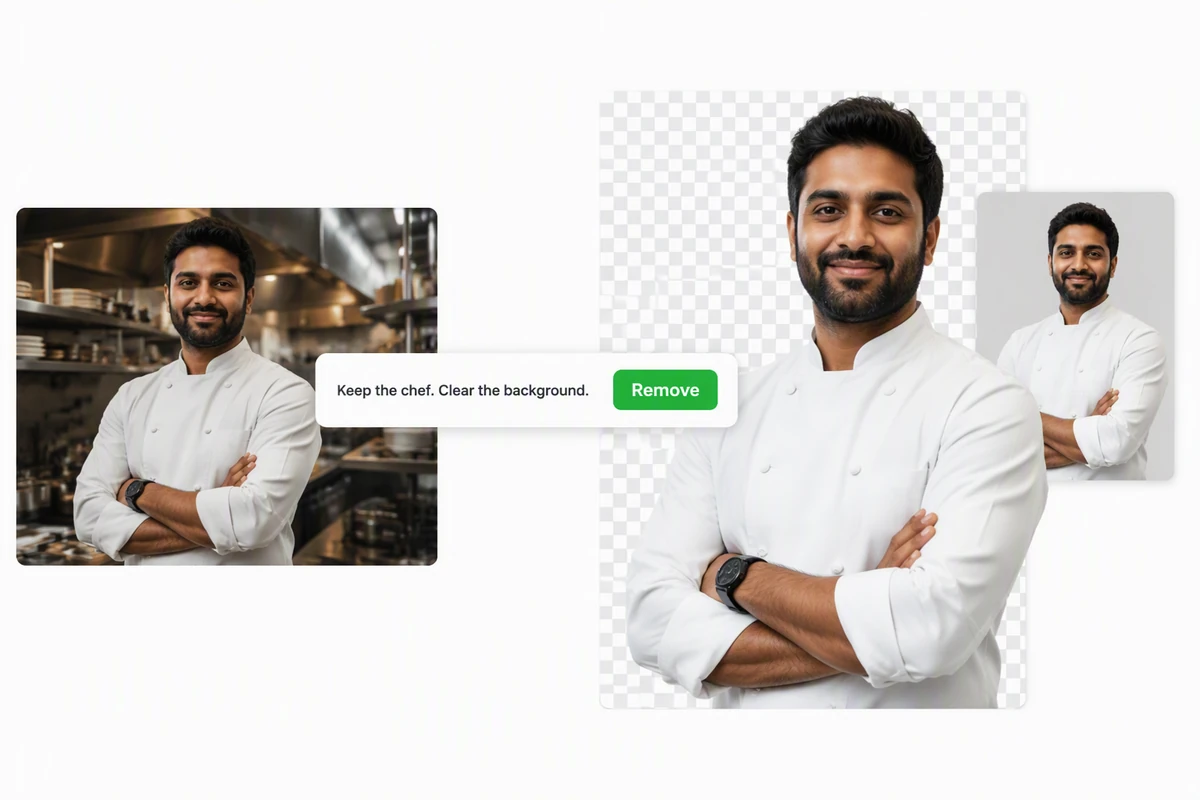
A chef isolated cleanly from a busy restaurant kitchen

Isolate the moving person

The chef example separates a white uniform, dark hair, folded arms, and watch from a busy restaurant kitchen. Describe the person as the subject, then inspect hair, sleeves, hands, and any motion blur frame by frame instead of approving the checkerboard preview alone.

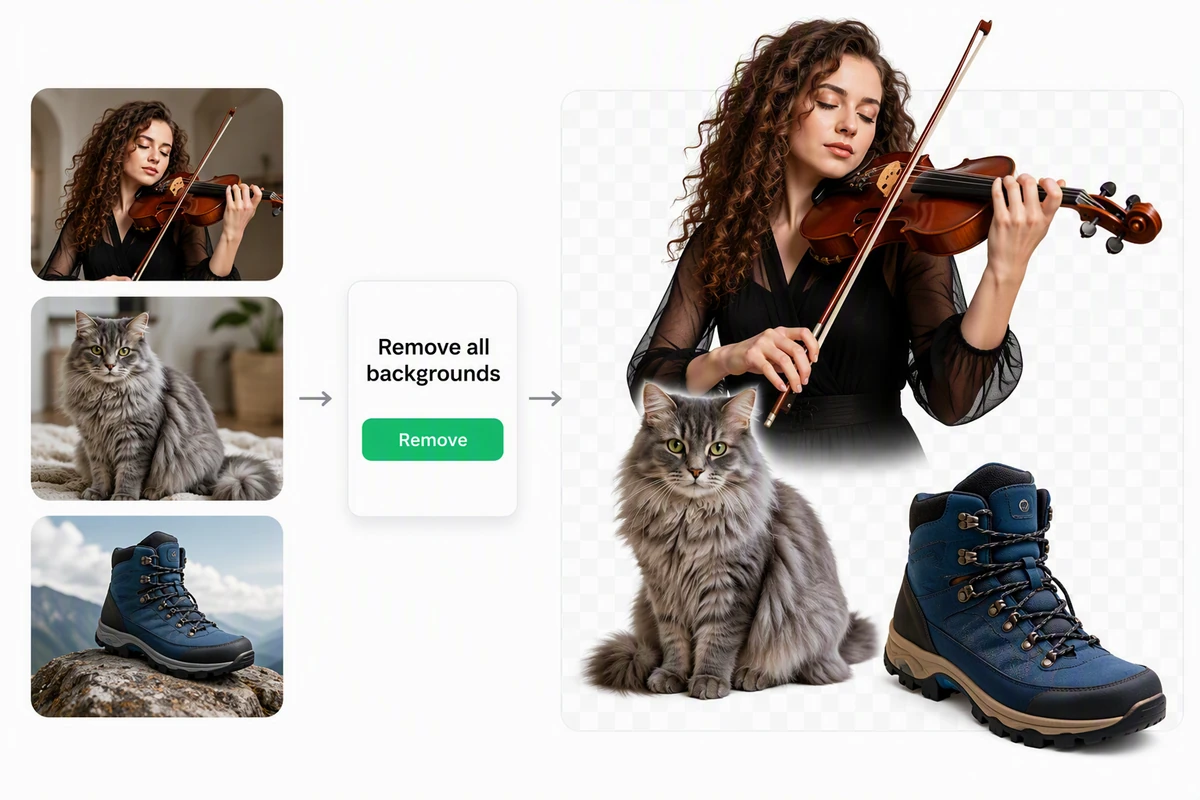
Clean cutouts of a violinist, gray cat, and hiking boot

Handle different edge types

A violinist, long-haired cat, and hiking boot test curls, fur, strings, laces, and hard product contours. Use AI image generation for related still-image work, but judge an animated cutout by edge stability over time as well as a single clean silhouette.

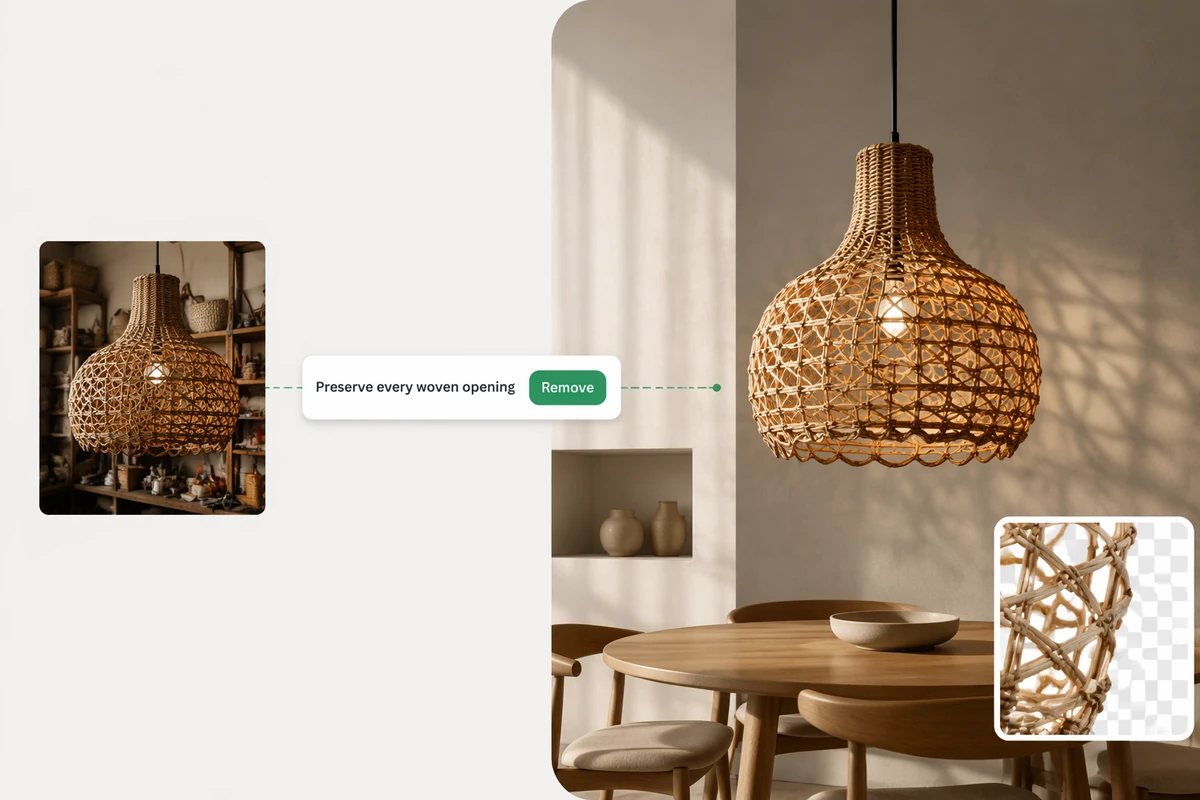
An intricate wicker lamp cut out and placed in a modern dining room

Preserve holes and woven detail

The wicker lamp depends on open gaps staying transparent without erasing the narrow strands. After removal, place the subject over the intended scene and inspect the weave at full size. Matching light and shadow is a separate compositing decision, not proof that the mask is accurate.

How to Use a GIF Background Remover

Step 01

Upload the GIF

Choose an animation you are allowed to edit. Identify the foreground subject, the background to remove, and any fine details, reflections, or motion blur that require careful preservation.

Step 02

Request the cutout

Describe what must remain in every frame and whether the source has a solid, varied, or moving background. Generate the result, then preview the complete loop before downloading.

Step 03

Test the export

Check light, dark, and final destination backgrounds for halos, clipped edges, repeated frames, flicker, and timing changes. Request a focused correction when one area or frame fails.

Why creators choose Ottermind

Animation-aware brief

Describe movement and edge risks without treating the source like a static frame.

Reference stays attached

Keep the original GIF beside results so timing, pose, framing, and subject detail remain easy to compare.

Edge-focused revisions

Call out one halo, clipped detail, or unstable frame without rebuilding the removal request from memory.

Reusable cutout planning

Plan a still companion asset through AI image generation while keeping the same subject and destination in context.

Destination checks

Review the loop on backgrounds and canvas sizes where the sticker, overlay, or product asset will appear.

Continue in Studio

Carry the source, removal instructions, failed-edge notes, and approved version into the next production step together.

FAQ

What does a GIF background remover do?

It removes scenery from an animated GIF so the subject can appear on a transparent or replacement background. Review the whole loop: a clean poster frame can hide flicker, clipping, or background artifacts later.

Can a GIF have a transparent background?

GIF89a supports one transparent color index, not smooth alpha transparency. Soft shadows, hair, smoke, and motion-blurred edges can therefore look jagged or matted. Preview the export on several backgrounds, and choose another destination format when smooth partial transparency is essential.

Why do transparent GIF edges show a halo?

Source pixels may be blended against a matte color or approximated with dithering before export, making the fringe visible on another background. Test contrasting surfaces, inspect original edge colors, and request a cleaner mask or suitable matte for the final placement.

How do I stop flicker between frames?

Inspect the mask through the entire loop and note the exact frames where the edge jumps or a background patch returns. For motion-led source work beyond GIF, Image to Video and Photo to Video AI Free explain separate animation workflows.

What subjects are hardest to isolate?

Fine hair, fur, sheer fabric, smoke, reflections, spokes, woven objects, fast motion, and foreground colors close to the background usually need the most scrutiny. Describe those risks explicitly, then review both the silhouette and internal openings instead of trusting a small preview.

Can I replace the removed background later?

Yes, but removal and scene design are separate decisions. First validate the transparent subject; then match scale, perspective, light, and shadow in the new composition. Continue with Image to Video or the broader AI video generator workflow only after the cutout is approved.

Discover more

How people use Ottermind for images

I had a batch of mug photos shot on my kitchen table. I cleared the clutter, tried two cleaner backgrounds, and kept the one that still looked like my real product. It felt more like tidying up a shoot than starting over.

Lena Ortiz - Online Shop Owner

More from the blog

Use the GIF Background Remover Carefully

Upload one permitted animation, name the moving subject and fragile edges, review every frame on contrasting backgrounds, and refine any halo, clipping, flicker, or loop error.

Remove Background