



Image to Video

Upload an image, describe its motion and camera feel, then generate a video around that direction. Review each take and refine it in Ottermind.

Fashion Motion
Action Portrait
Fantasy Scene
Surreal Chase
Beauty Close-up
Product Fantasy
Blueprint Build
Bungee Motion
Night Chase
Claude
GitHub
Google
Linear
Microsoft
Monday
Netlify
Notion
OpenAI
Sentry
Slack
Stripe
Supabase
Claude
GitHub
Google
Linear
Microsoft
Monday
Netlify
Notion
OpenAI
Sentry
Slack
Stripe
Supabase

Bring a still visual into motion

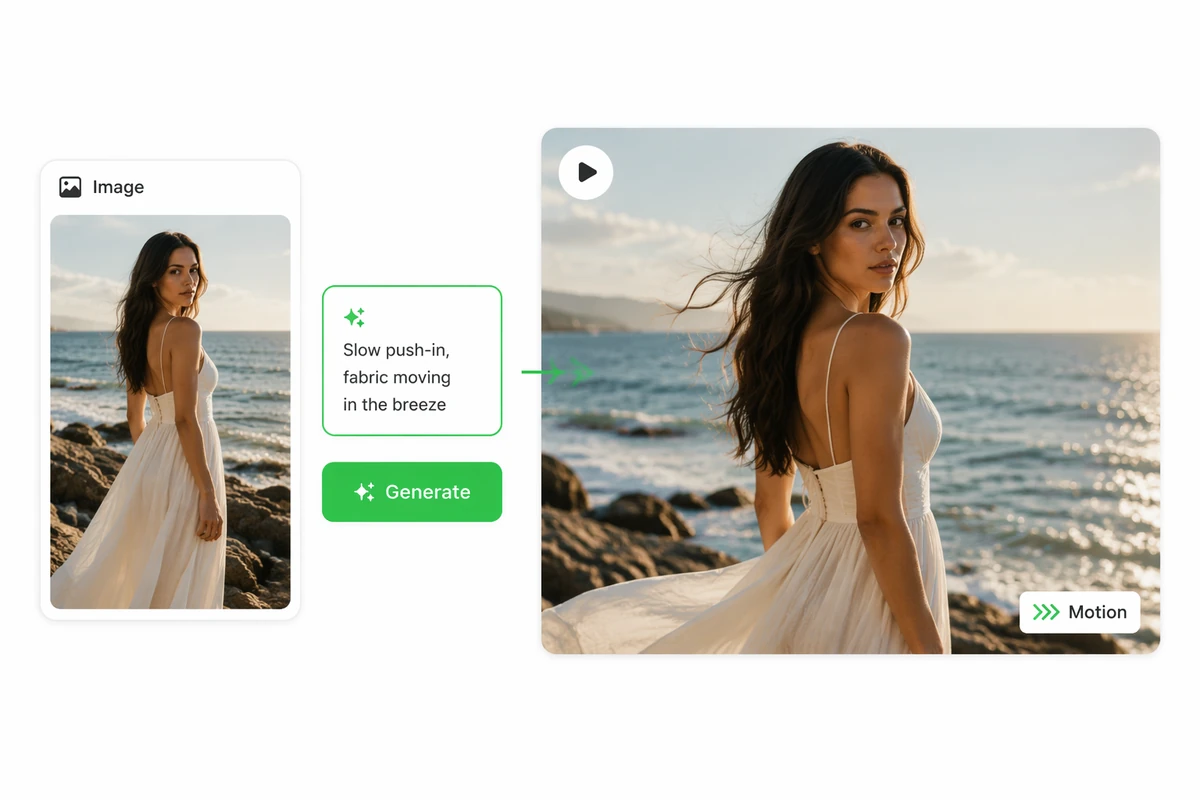
Image to video generation uses a reference image and written direction to create a moving interpretation. Ottermind can use the subject, product, setting, palette, or mood as a starting point while you describe the movement, camera behavior, pace, and destination. That keeps the source and requested change distinct. Identify the details that must remain recognizable so you can inspect every take against the same reference.

A reference photograph and motion prompt becoming a cinematic video

Direct motion with a simple prompt

Upload a reference image and describe the movement you want, from a slow camera push to subtle environmental motion. If you need a new source image first, create it with AI image generation, then use it as the visual direction for the video.
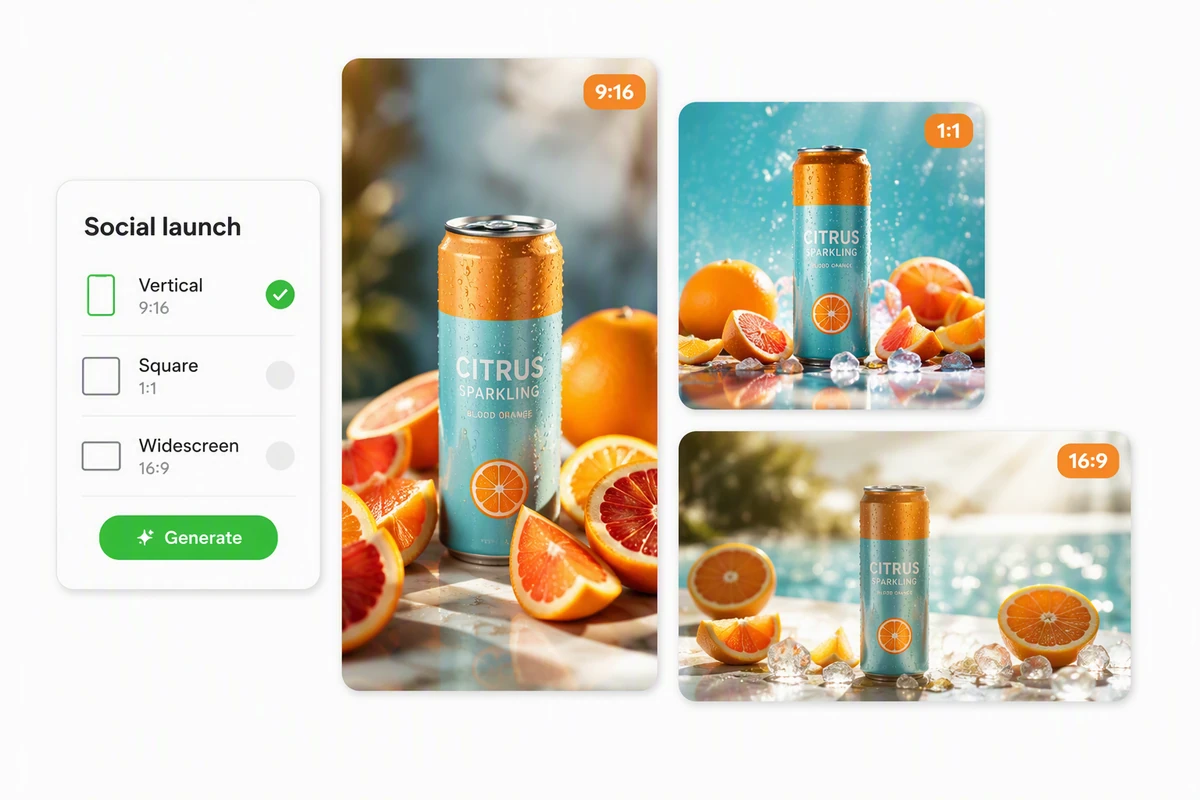
A product image interpreted as vertical, square, and widescreen videos

Create for every screen

Tell the Agent where the video will be used, from a vertical post to a square clip or widescreen presentation. For a social sequence built around several scenes, continue with AI Reel Maker and carry the strongest motion direction into the brief.

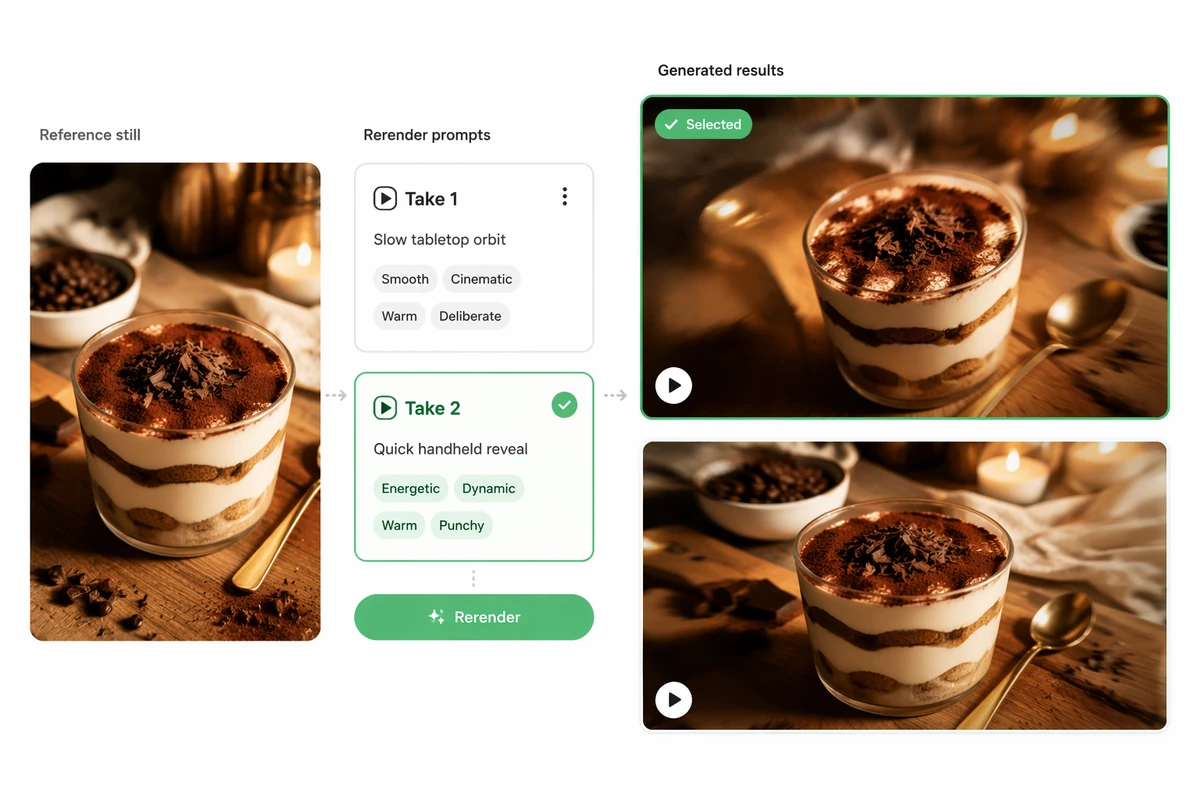
One reference image producing two distinct motion-directed video takes

Rerender, not reshoot

Change the motion, pacing, camera feel, or visual direction in your request and generate a fresh take from the same reference. Compare versions and record which instruction changed the result most before keeping the strongest idea without returning to a camera setup.

How to turn an image into a video

Step 01

Choose the reference

Upload an image you can use and identify what should guide the video, such as its subject, product, setting, palette, composition, or mood.

Step 02

Describe the motion

Explain the subject movement, environmental motion, camera behavior, pace, and intended frame. Keep the first request focused on the most important action.

Step 03

Review and rerender

Inspect the result for unwanted changes, awkward motion, and framing. Update one or two directions, generate another take, and compare versions against the original goal.

Why creators choose Ottermind

Reference-guided start

Use an existing visual to communicate the subject, product, setting, palette, and mood.

Clear motion direction

Describe the main movement and camera behavior in ordinary language instead of building a timeline.

Original video takes

Generate a new interpretation of the reference rather than expecting a pixel-identical animated copy.

Purpose-built framing

Name the destination and frame so the composition can be planned around the intended viewing context.

Version comparison

Compare visual takes, or explore a broader text-led concept with the AI video generator.

Continue in Studio

Take the strongest video direction into Studio with its references and feedback still connected.

FAQ

What is AI image-to-video generation?

Image to video generation uses a still image and written motion direction to create a new moving visual. The reference can guide subject, composition, palette, or mood, while the prompt explains how the scene and camera should move.

What kinds of images can I animate?

You can start from a product image, portrait, illustration, environment, or original artwork that you have permission to use. For a hand-painted storybook direction, try the Ghibli Art Video Generator. Results vary with image quality, subject complexity, motion, and composition.

How should I write an image-to-video prompt?

Name the primary subject, the most important movement, the camera behavior, and the desired pace. Add the destination or aspect ratio when it matters. Add secondary motion only after the first action works, rather than stacking conflicting actions into the first request.

Will the generated video preserve every detail exactly?

No exact identity, action, or pixel-level preservation is guaranteed. Treat the source as visual direction for an original generated video, then inspect the result in detail for unintended changes before using it publicly.

Can I create another version without reshooting?

Yes. Keep the same reference, revise the motion, pace, framing, or mood, and ask for a fresh take. Compare the versions directly and retain the prompt details that produced the strongest result.

What should I check before sharing the video?

Review subject consistency, motion quality, framing, factual or product details, and rights to the reference image. Confirm that the final output also meets the destination's current format and disclosure requirements before publishing or delivering it.

Discover more

What video creators say about Ottermind

We moved from a loose campaign idea to a video direction the whole team could discuss. The script, visual references, pacing notes, and revisions stayed connected, so every review made the sequence more specific instead of sending us back to a blank brief.

Avery Morgan - Video Marketing Lead

More from the blog

Bring your reference image into motion

Upload a visual, describe the movement and camera feel, and generate an original video take you can inspect, rerender, and continue refining in Studio.

Animate an image