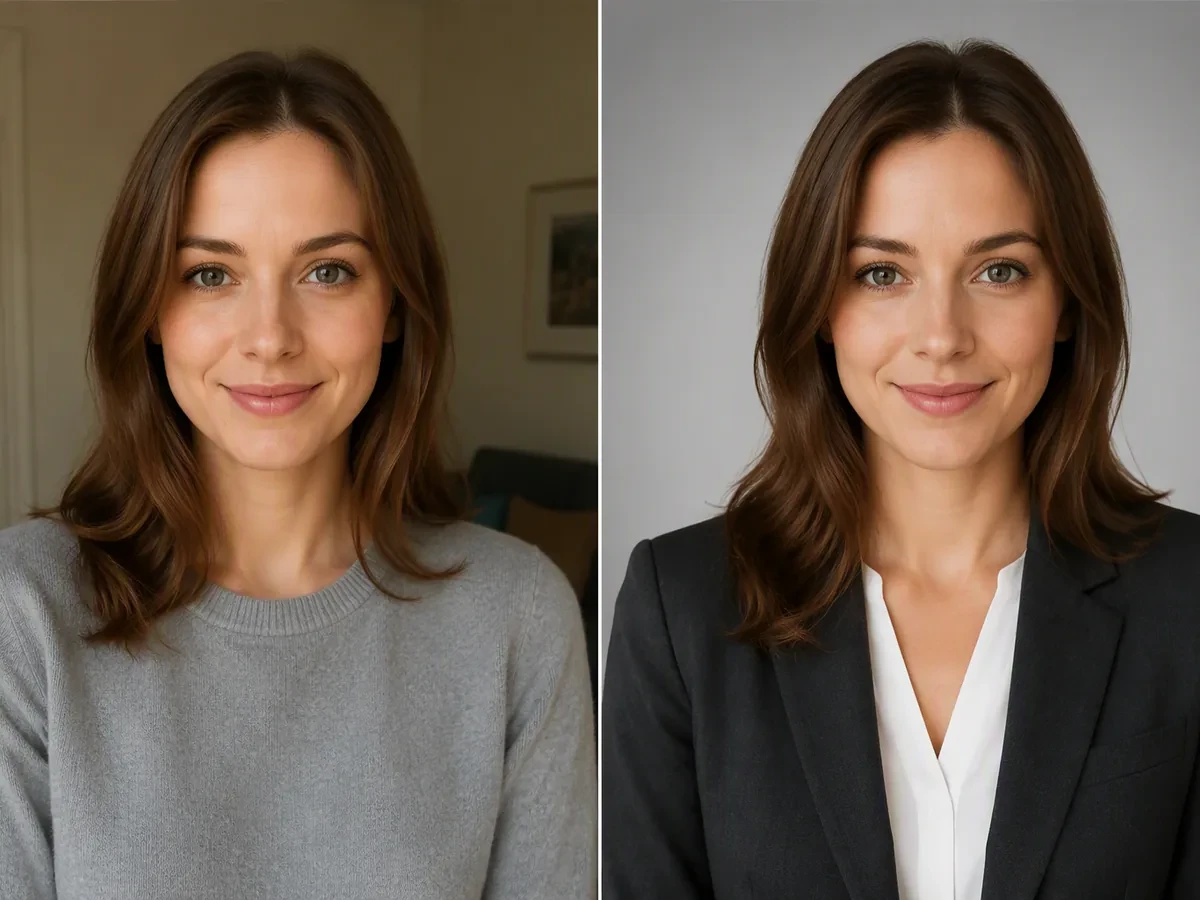
Resume Photo Editor
Upload a portrait to the Resume Photo Editor, compare the professional direction, then continue in Studio to refine the role, destination, and details.

Drag an image here or click to upload












Explore image transformation styles
Explore a range of image transformations and find the look that fits your idea.
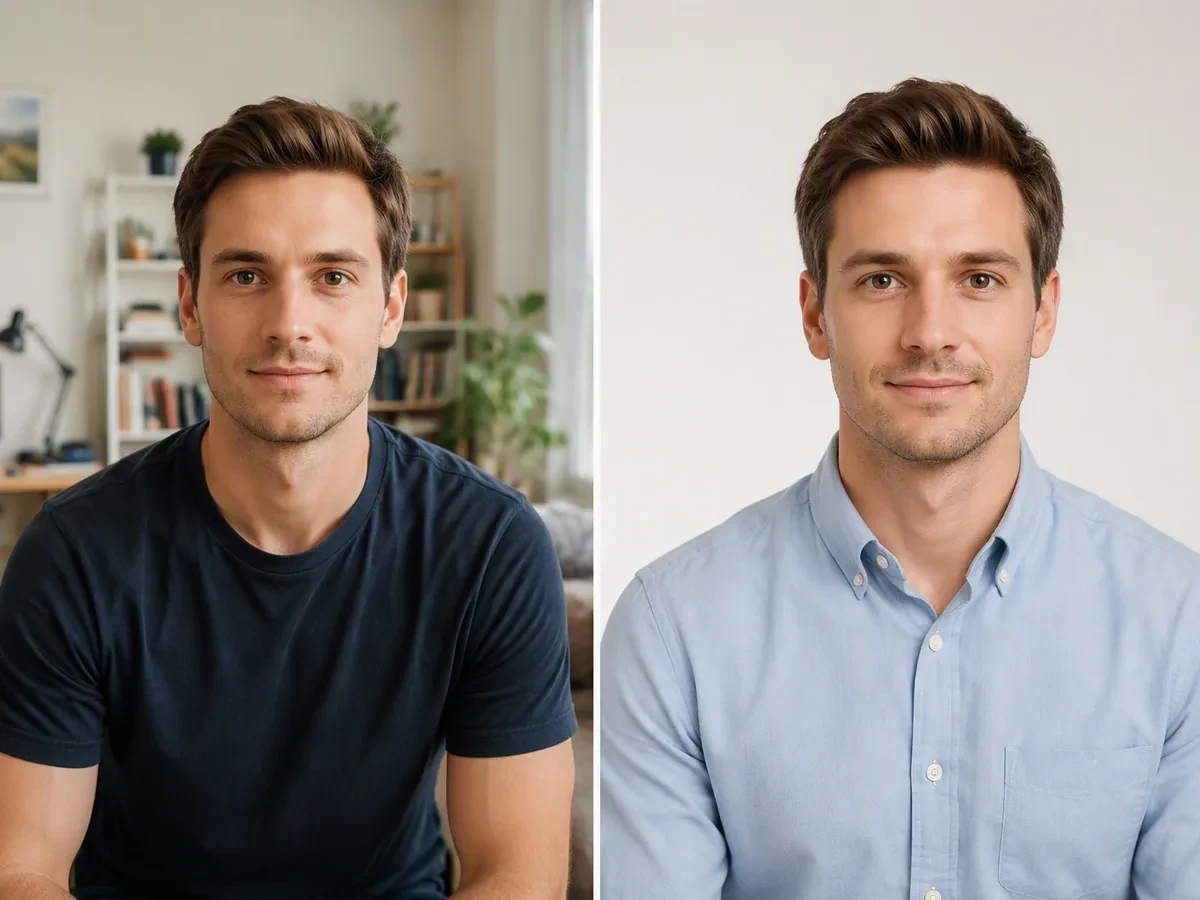
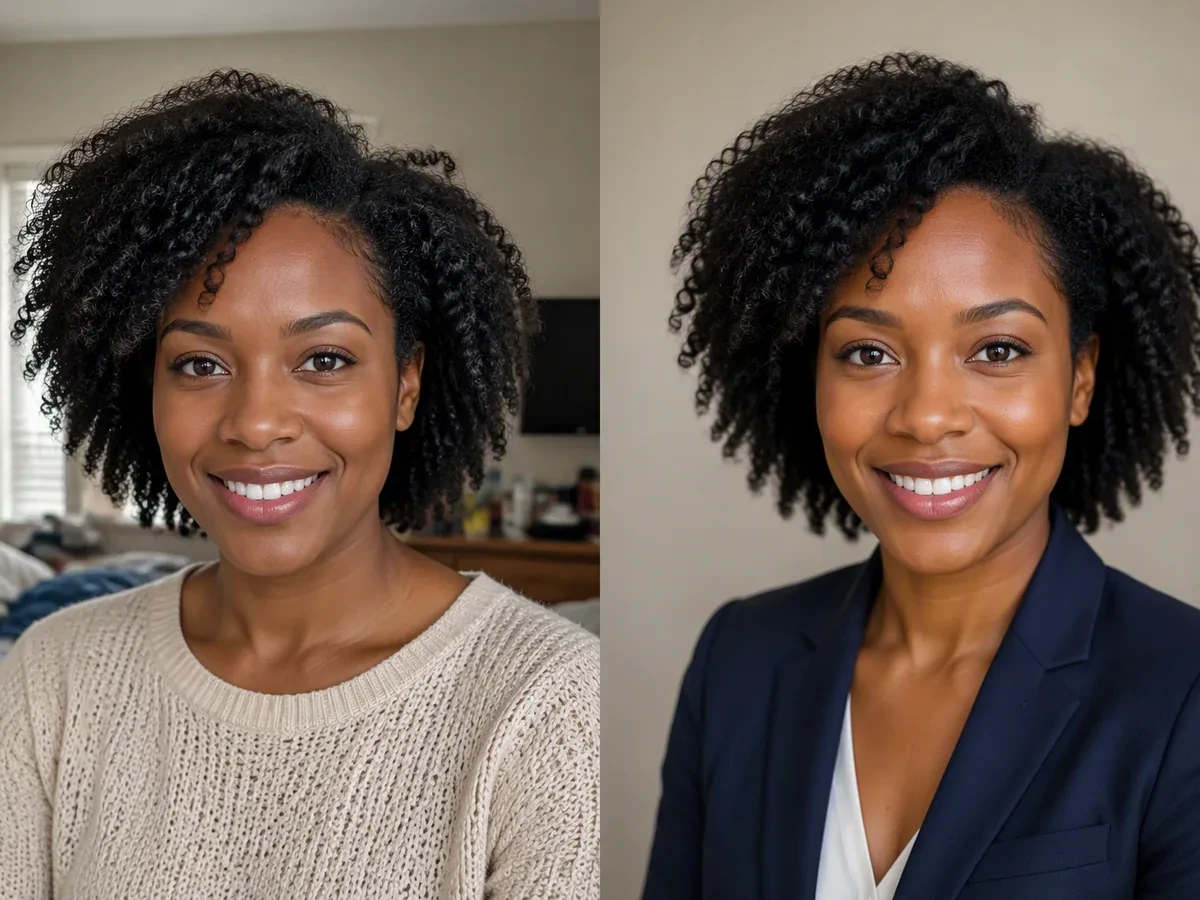
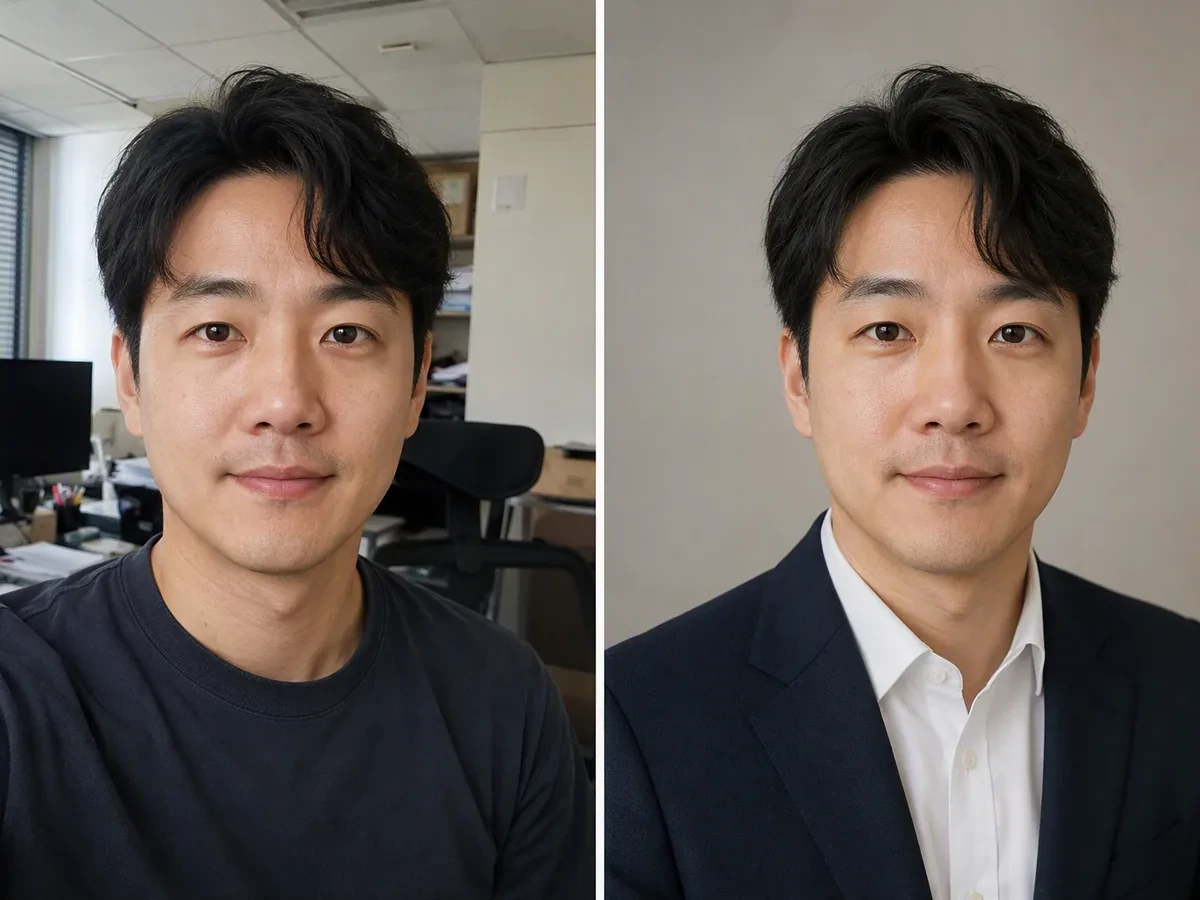
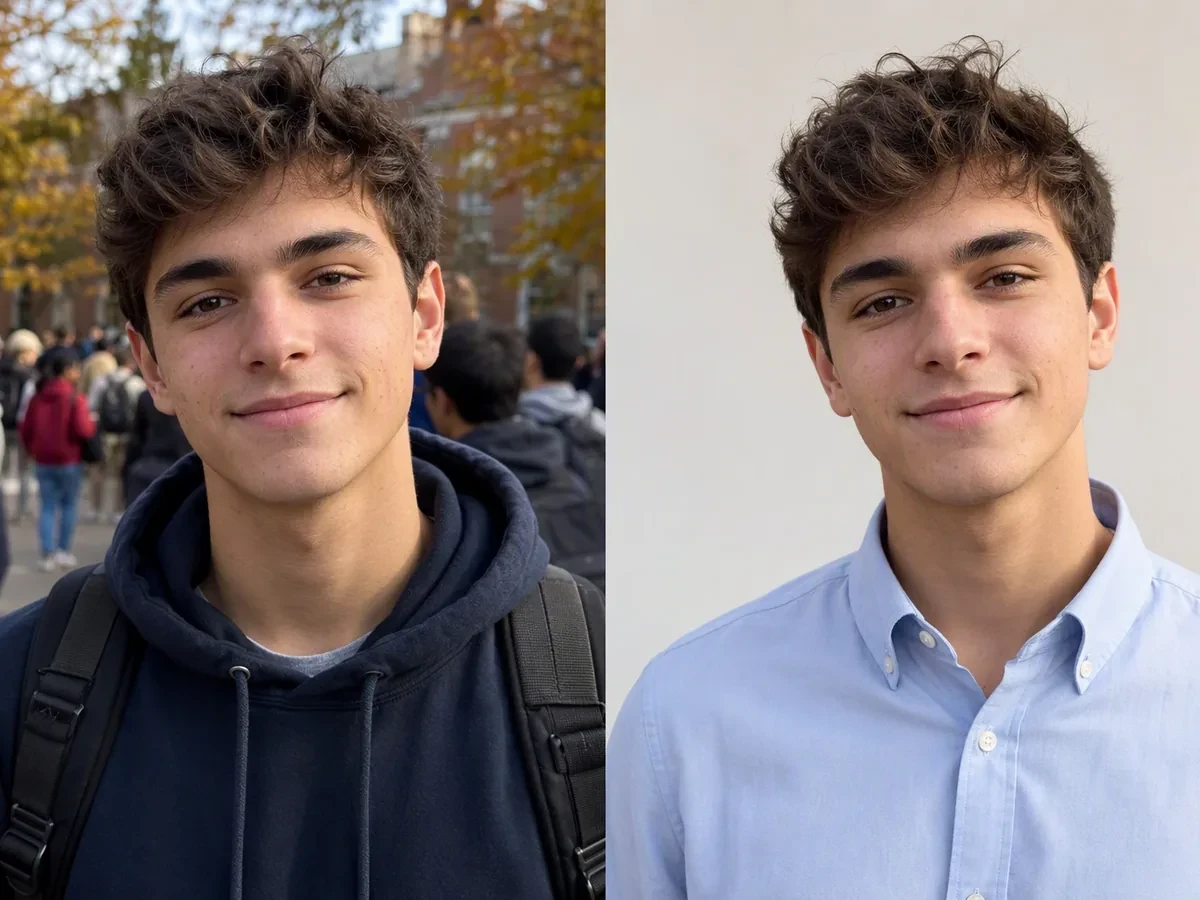
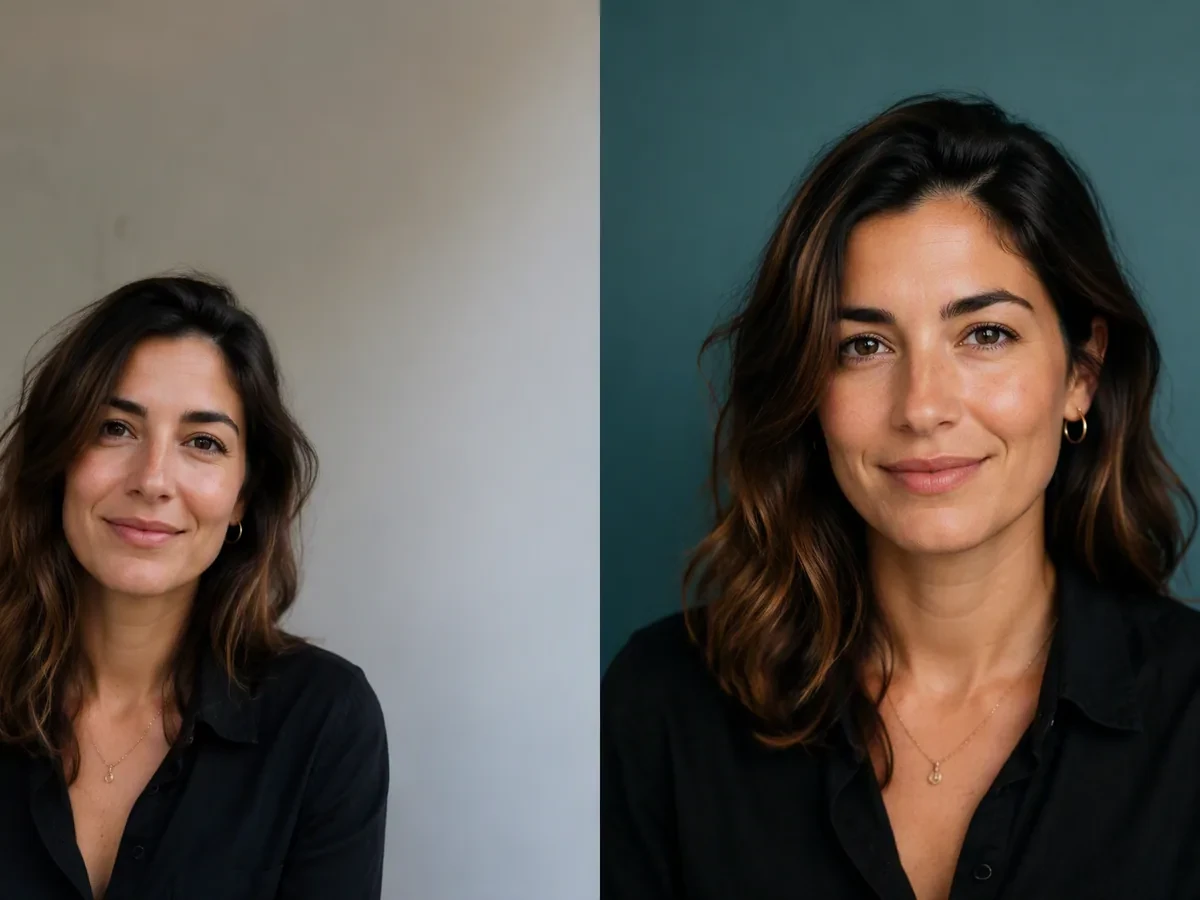
A Resume Photo Editor Built Around the Destination
A useful Resume Photo Editor does more than exchange a background. It starts with where the portrait will appear, keeps the candidate recognizable, and makes each change easy to compare carefully with the source. Check local application conventions first; then pair an approved portrait with the AI Resume Builder when the document itself needs tailoring.
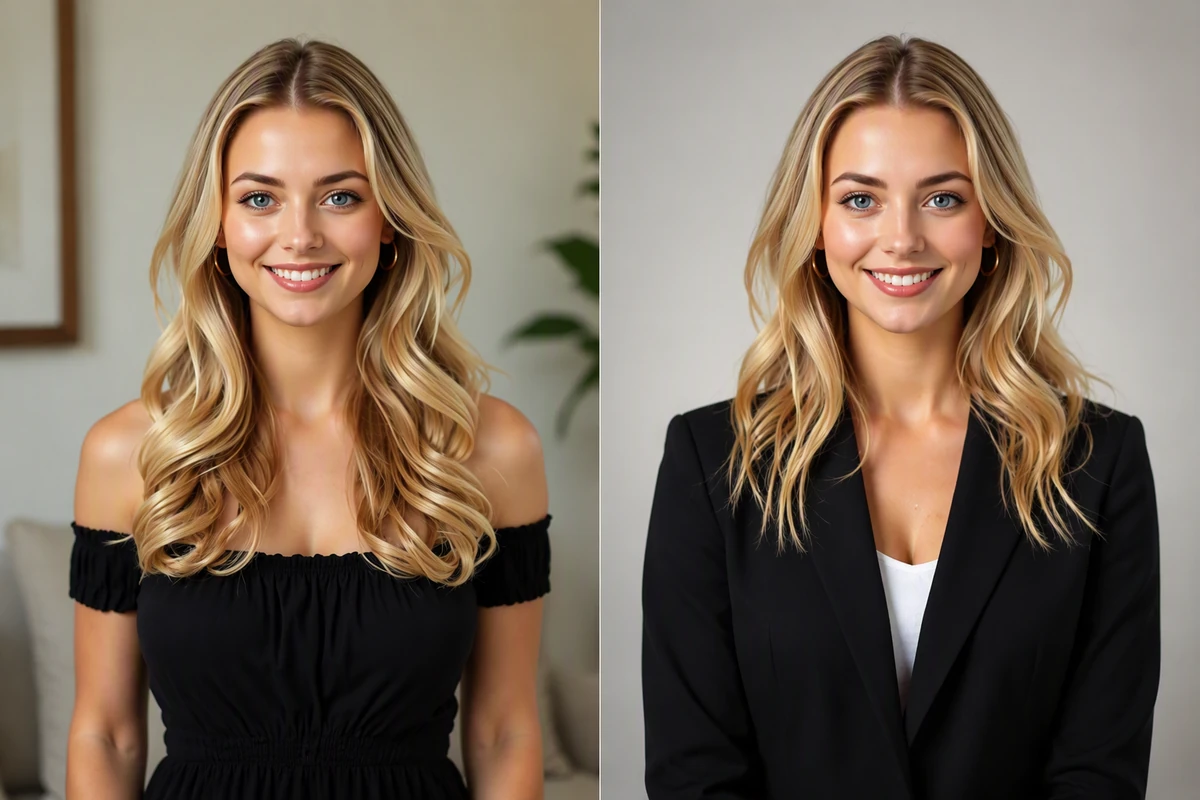
Build a Professional Headshot from a Usable Source
Start with a sharp, front-facing portrait and describe the role, clothing, background, and degree of formality. If the source is too soft to judge, review it with Fix Blurry Pictures before requesting a resume headshot. Preserve facial proportions, hair, skin tone, and expression as review checkpoints.
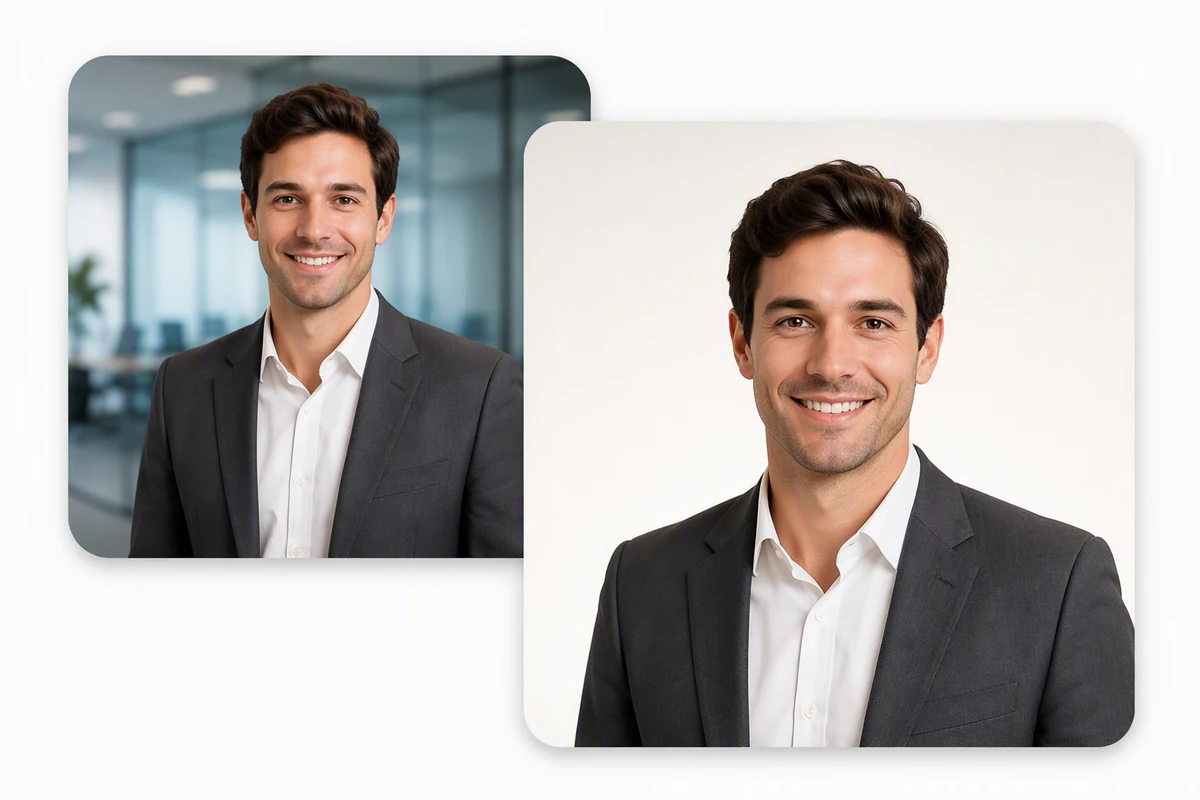
Replace Distractions, Not the Person
A CV photo editor can move a portrait onto a plain, role-appropriate background while keeping the face and clothing boundaries coherent. Inspect hair edges, glasses, shadows, and shoulders at normal size. Continue with AI image generation only when a new visual interpretation, rather than a faithful edit, is acceptable.
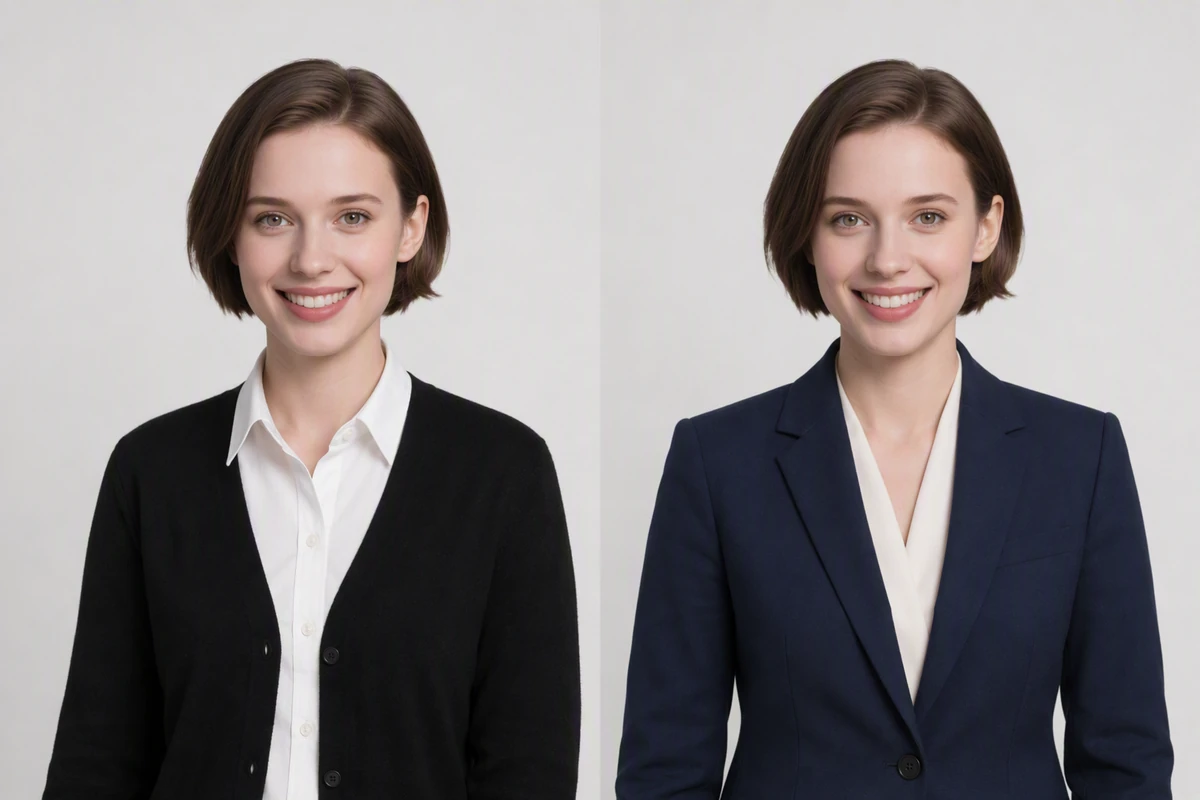
Test Professional Attire without Overclaiming Reality
An outfit change can help compare levels of formality, but generated fabric and body geometry still need review. Ask the agent to keep pose and identity fixed, compare lapels and neckline with the source, and use AI image generation for broader creative alternatives that are clearly treated as interpretations.
How to Use the Resume Photo Editor
Step 01
Choose the Destination
Decide whether the image belongs on a CV, career profile, email account, or staff page; application customs and crop expectations differ by destination.
Step 02
Upload a Reliable Source
Add a clear, recent portrait you have permission to use. The upload carries a professional starting brief into Studio, where you can refine the role, background, clothing, crop, and unchanged details.
Step 03
Compare before You Approve
Inspect the edited face, hair, skin tone, clothing edges, and background beside the source; reject identity drift or details you could not defend in person.
Why creators choose Ottermind
Destination-First Prompts
Describe the role and placement so the agent edits toward a specific professional use.
Source-Linked Review
Keep the original, requested changes, and feedback together while comparing each resume headshot.
Focused Revisions
Revise one background, crop, or clothing detail without replacing a direction that already works.
Honest Alternatives
Treat substantial generative changes as interpretations and verify that the final portrait still resembles you.
Resume Continuity
Carry the approved photo into the AI Resume Builder with the application context attached.
Visible Agent Work
Inspect outputs and keep critical upload or publishing actions subject to your approval.
FAQ
Should I Put a Photo on My Resume?
It depends on the destination. Stanford and Yale advise against resume photos for U.S. applications, while practices vary elsewhere. Check the employer and local convention first; a professional profile may be the better home for the image.
Can an AI Resume Photo Still Look Like Me?
It should remain recognizably you. Compare facial shape, eyes, hairline, skin tone, expression, and age cues with the source. LinkedIn requires a profile image to reflect your likeness, so reject an edited resume headshot that changes identity rather than presentation.
What Source Photo Produces the Best Starting Point?
Use a recent, sharp, front-facing portrait with even light and enough space around the head and shoulders. Avoid group photos, heavy filters, blocked facial features, and tiny crops. For a soft source, try Fix Blurry Pictures before asking for professional styling.
Can the Resume Photo Editor Change My Outfit?
You can request an outfit interpretation, but inspect collars, lapels, shoulders, hair boundaries, and body proportions before using it. Keep the result consistent with clothing you would realistically wear; a polished image should not create a false impression.
What Background Works for a Professional Resume Photo?
Choose a simple background that separates the subject without distraction. Neutral white, gray, or softly colored settings are practical starting points, but the employer or destination may specify something else. Check edge quality around hair and glasses after replacement.
Can I Reuse the Same Photo Across Profiles?
Yes, when the crop, formality, and platform rules fit. Keep a reviewed master, then make destination-specific crops instead of regenerating the face. If the document also needs work, continue with the AI Resume Builder and keep both decisions together.
Discover more
AI Resume BuilderAI Receipt TrackerPC Builder AIAI Logo GeneratorAI Brochure MakerAI Menu GeneratorAI Quote GeneratorAI Story GeneratorAI Art Generator from ImageAI Comic Generator from PhotoAI Lip Sync ToolAI Music Video GeneratorAi pet portrait generatorAI Reel MakerAI Social Media Post GeneratorAI Video DemoFix Blurry PicturesGhibli AI GeneratorGhibli Art Video GeneratorGIF Background RemoverHashtag GeneratorImage EffectsImage saturationImage to VideoInstagram Name GeneratorFree Online Photo Collage MakerMugshot MakerPicture Outline MakerPhoto RetouchingPhoto to Anime ConverterPhoto to Anime Video AI FreeConvert Photo to Oil PaintingPhoto to SketchPhoto to Video AI FreeReplace Color in ImageResume Photo EditorSlogan GeneratorUsername GeneratorYouTube Name Generator
How people use Ottermind for images
I had a batch of mug photos shot on my kitchen table. I cleared the clutter, tried two cleaner backgrounds, and kept the one that still looked like my real product. It felt more like tidying up a shoot than starting over.
Lena Ortiz - Online Shop Owner
More from the blog




Create a Resume Photo You Can Defend
Upload a clear portrait, compare the planned professional direction, then continue in Studio to refine the destination and check the edited resume headshot against your source.
Edit My Photo